
Connect WhatsApp and prepare templates
Connect WhatsApp, prepare approved templates, upload media, and understand when free-text replies are available.
Before live messaging, select the correct dashboard project and open WhatsApp → Account & Setup. A development-key quickstart does not require a live WhatsApp connection.
Review your connection
Follow the connection actions offered for your project. The available path depends on whether you use your own WhatsApp Business Account or have access to a shared account. Complete the hosted Meta steps only when you are ready to authorize the business and phone number.
For your own connection, check the connected account, available phone numbers, business verification/account review, and Connection Health. Use Sync when you need to refresh connection information. A connected label alone does not guarantee that every template or recipient can be used.
Standard signup and coexistence are different options. Coexistence keeps an eligible WhatsApp Business App number active while adding Cloud API access, and requires the dedicated configuration to be enabled. Do not assume every project or number is eligible. For platforms onboarding customers, use the provider guide.
Create the right template
Open WhatsApp → Templates → Create template. Select the category that matches the content, choose a language, and fill the fields displayed by the editor.
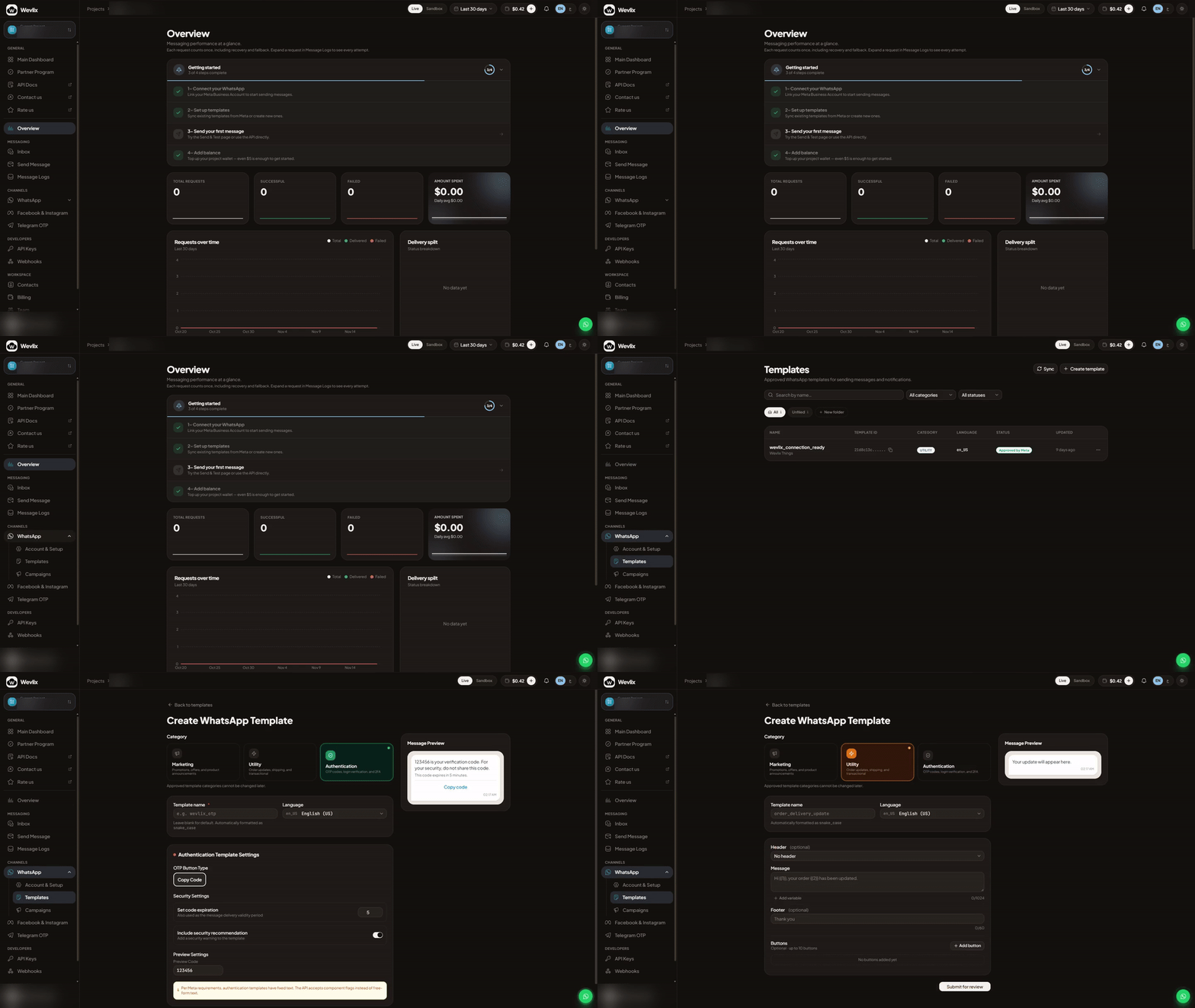
The real screen recording shows navigation from Overview to Templates and the empty editor, then changes the category. Account and project details are blurred. No template is submitted.
| Category | Typical use | What to prepare |
|---|---|---|
| Authentication | OTP and login verification | Authentication settings and code-expiration behavior. Text follows the authentication format. |
| Utility | Order or transaction updates | Message content, variable examples, optional header/footer and buttons. |
| Marketing | Promotions and announcements | Appropriate marketing content, variables and consent for the intended audience. |
Review the preview and submit when complete. Wevlix review, Meta submission and final approval are separate stages. A local draft or a successful submission is not the same as an approved sendable template. Follow the displayed lifecycle reason when corrections are required; avoid creating duplicate templates to bypass review.
Find an integration-ready template
Use the filters in Templates and check status, language and category. API clients can list project-visible templates using GET /v1/templates with templates:read, then inspect a selected template with GET /v1/templates/{templateId}.
For a ready-to-copy request, use GET /v1/templates/{templateId}/integration. Treat generated integration snippets as sensitive if they contain credentials. Replace any real key with a server-side environment variable before sharing.
Utility/Marketing creation and correction use POST /v1/templates and PATCH /v1/templates/{templateId} with templates:write and a live project key. Authentication creation uses its separate endpoint. Shared-account visibility and ownership restrictions still apply. Use the generated reference for the complete component schema.
Media: sample versus send-time file
These are separate operations:
- Template creation sample: upload through
POST /v1/templates/header-exampleand use the returned header handle in the creation schema. - Sending an approved media template: upload through
POST /v1/mediawithmedia:write, then use the returned Wevlix media ID in the send-time components required by the approved template.
curl --request POST "$WEVLIX_BASE_URL/v1/media" \
  --header "X-API-Key: $WEVLIX_API_KEY" \
  --form 'file=@./example.jpg'
Let curl set the multipart boundary. Match file type to the approved header. The current upload limits are 5 MB for JPEG/PNG/WebP, 16 MB for MP4/MP3 and 100 MB for PDF/plain text; template headers support JPEG/PNG, MP4 and PDF. Stored files expire after 30 days. Download access is project-scoped and requires a live key with media:read.
Send and reply
Send approved template messages through POST /v1/messages/template with messages:send. Store messageId and follow status through GET /v1/messages/{messageId} or webhooks. Some already-submitted pending templates can wait in bounded recovery; acceptance still does not guarantee approval or delivery.
Free-text replies through POST /v1/messages/text require live execution and an inbound message from that recipient within the preceding 24 hours. Development keys and sandbox projects are rejected for this endpoint. When the window is closed or unknown, use an approved template.
Open Inbox to inspect conversations and Message Logs for request/attempt details. The external log API is GET /v1/messages/logs with messages:read; its history is limited to 30 days or a shorter project policy, even when the dashboard shows a different retention window.
Updated about 16 hours ago